How to Password Protect a Folder: Complete Guide 2026
Securing sensitive files on a shared computer or cloud drive requires the right approach. In this guide, we evaluate built-in operating system features, free compression tools, and dedicated encryption software to help you lock down your data safely.
Quick Answer: How to password protect a folder
The best method depends on your operating system and needs. Windows 10/11 Pro users can use the built-in Encrypting File System (EFS) by right-clicking a folder, selecting Properties, clicking Advanced, and checking Encrypt contents to secure data. If you use Windows Home, or need to transfer the folder securely via USB or cloud storage, you will need to use a ZIP utility like 7-Zip to create an encrypted archive, or dedicated folder protection software.

Overview: Why Folder Security Matters
Whether you are sharing a household computer, managing sensitive business documents, or syncing personal files to a cloud drive, leaving your data unprotected poses a significant privacy risk. Passwords, financial records, and private communications require a layer of defense beyond a basic Windows user login.
Throughout this guide, we will explore several distinct approaches to solving this problem.
- Built-in OS Encryption: Native tools provided by Microsoft and Apple.
- Archiving Utilities: Wrapping folders into password-protected compressed files.
- Dedicated Security Software: Third-party applications designed specifically for on-the-fly encryption and folder locking.
We have tested these methods extensively to outline their difficulty, effectiveness, and best use cases so you can make an informed decision.
Methods Guide: How to Make a Folder Password Protected
Method 1: Windows Encrypting File System (EFS)
Built-in (Pro/Enterprise Only)Windows Pro and Enterprise editions include a built-in feature called EFS. It ties the folder encryption directly to your Windows user account.
How it works:
- Right-click the target folder and select Properties.
- Under the General tab, click the Advanced button.
- Check the box labeled Encrypt contents to secure data.
- Click OK, then Apply.
- Choose whether to apply changes to this folder only, or to subfolders and files.
- No extra software required.
- Seamless access when logged into your Windows account.
- Not available on Windows Home editions.
- Does not prompt for a password when opening (relies entirely on Windows login).
- Files lose encryption if moved to a FAT32 USB drive.
Method 2: Using a ZIP Utility (Like 7-Zip)
Free Tool requiredIf you need to know how to password protect a folder without software that costs money, using an archiving tool like 7-Zip or WinRAR is a standard workaround. This compresses the folder into a single file and locks it with AES-256 encryption.
How it works:
- Install 7-Zip.
- Right-click the folder, navigate to 7-Zip, and select Add to archive...
- In the Encryption section on the right, type a secure password.
- Ensure the encryption method is set to AES-256.
- Check Encrypt file names for extra privacy.
- Click OK. Delete the original, unencrypted folder securely.
- Completely free.
- Highly secure encryption standard.
- Excellent for sending folders via email.
- Cumbersome for daily use.
- You must extract files to edit them, then re-encrypt the folder.
- Original files must be manually deleted.
Method 3: Dedicated Document Security Software
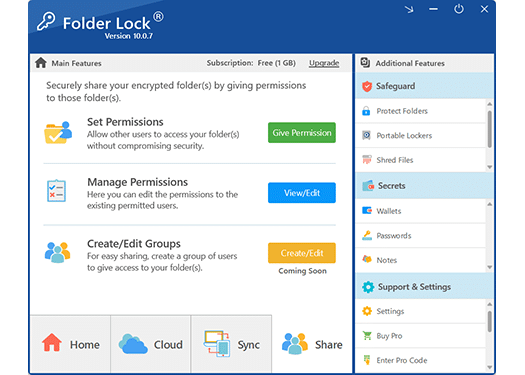
Commercial OptionFor users who need to access encrypted files frequently without extracting archives, dedicated document security software like Folder Lock provides "on-the-fly" encryption. These tools create secure digital vaults or apply kernel-level locks to specific directories.
This method solves the primary pain point of ZIP files by allowing you to open, edit, and save files directly within the encrypted space using Folder Lock's intuitive interface.
- Fast, seamless daily access.
- Military-grade encryption standards.
- Often includes secure cloud sync and USB protection.
- Full versions require a paid license.
- Forgetting the master password means permanent data loss.
Methods Comparison
The table below summarizes our findings across the three primary methods.
| Method | Difficulty | Security Level | Cost | Best For |
|---|---|---|---|---|
| Windows EFS | Low | Moderate | Free (Pro OS req.) | Basic local privacy against casual snooping. |
| 7-Zip Archiving | Moderate | High | Free | Archiving old files or emailing secure data. |
| Security Software (Folder Lock) | Low | Very High | Paid / Free tier | Daily use, cloud syncing, and business data. |
| Our Editorial Verdict: For files you rarely open, 7-Zip is the most cost-effective solution. If you need to edit encrypted documents daily, we highly recommend upgrading to dedicated security software to avoid the frustration of constant extraction and re-compression. | ||||
Can you password protect a folder in Windows 10 or 11?
Yes, but the native options differ significantly based on your specific Windows edition.
Password protect folder Windows 10 Home vs Pro
Windows Home editions do not include BitLocker or EFS. If you are using Windows 10 Home or Windows 11 Home, you cannot password protect a folder natively. You are required to use third-party archiving tools or dedicated document security software like Folder Lock.
 How to password protect USB drive and external storage
Securing portable drives is critical because they are easily lost. When securing an SD card or USB drive, you must use software like Folder Lock that creates a portable executable locker. This allows you to open your secured files on another computer without needing to install the software on that second machine.
Troubleshooting Guide
Forgot password recovery options ▼
True encryption means there is no backdoor. If you forget the master password to an AES-encrypted ZIP file or a software vault, the data is permanently inaccessible. We strongly advise storing your master passwords in a secure password manager.
How to bypass password protected folders ▼
If a folder is locked using a simple batch script (a common internet trick), you can bypass it simply by opening the script in Notepad to read the password, or booting into Safe Mode. However, if the folder is secured with AES-256 encryption software, there is no known method to bypass it without the correct key.
Windows EFS option is greyed out ▼
If the "Encrypt contents to secure data" checkbox is greyed out, you are likely using Windows Home edition, or the registry settings on your corporate machine have disabled EFS. You will need to use alternative security software like Folder Lock.
Tools We Tested and Reviewed
We tested several utilities to find the most balanced option for protecting files. After comparing BitLocker, 7-Zip, VeraCrypt, and commercial solutions, here is what we found.


Folder Lock 10
Developed by NewSoftwares.net
Why we recommend it:
Of all the options we covered, Folder Lock 10 offers the best balance of military-grade security and daily usability. Unlike ZIP archiving, it uses on-the-fly AES 256-bit encryption, meaning you don't have to extract files to work on them. It also solves the cloud storage problem by integrating directly with Dropbox and Google Drive to backup encrypted files safely.
In-Depth Feature Analysis
Kernel-Level Hiding
Bypasses standard file attributes by utilizing a kernel driver to render directories completely invisible to the OS, even during Safe Mode.

Executable USB Vaults
Converts flash drives into self-extracting secure lockers that can be accessed on guest machines without installing host software.

Encrypted Digital Wallets
A dedicated 256-bit AES vault specifically designed for structuring sensitive text data like credit cards and banking routing details.
Credential Management
A built-in encrypted manager for storing online login details, reducing reliance on easily compromised browser password managers.
Secure Journaling
A protected enclave for drafting private thoughts, wills, or sensitive business communications away from potential keyloggers.

Data Shredding
Permanently destroys deleted files and wipes empty hard drive space to thwart advanced forensic data recovery tools.

Privacy Sweeper
Automatically purges Windows usage history, run logs, and temporary files upon application exit.
Native Cloud Integrations
Unlike local-only encryption tools, this software provides dedicated lockers that interface natively with major cloud providers. This ensures data is encrypted before it leaves your machine, maintaining zero-knowledge privacy.
 Local Desktop
 Dropbox
 Google Drive
 OneDrive
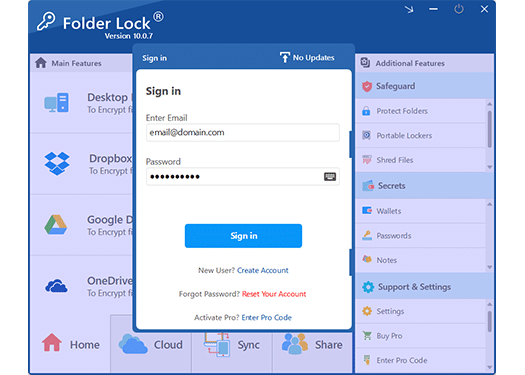
Interface Gallery
A look at the user interface across various security modules. The design avoids the complexity of command-line tools in favor of an intuitive dashboard.
Enterprise-Grade Trust
While highly accessible for home users, the cryptographic backbone is trusted by aerospace organizations, global banks, and technical universities.




Not ideal for: Users strictly seeking an open-source, command-line solution.
Download for your device:
Other notable tools
VeraCrypt
A powerful open-source encryption tool. It is highly secure but possesses a steep learning curve. We found it best suited for advanced IT professionals who need to encrypt entire system partitions rather than individual folders.
7-Zip
As discussed in our methods section, 7-Zip is the best free utility for compressing and encrypting folders. It is ideal if you only need to protect archival data that you rarely open.
How to Create a Password Protected Folder using Folder Lock 10
Setting up your first secure locker takes less than two minutes. Here is the process.
Set Your Master Password
Upon launching the software, you will be prompted to create a Master Password. Make this strong and memorable—there is no backdoor recovery.
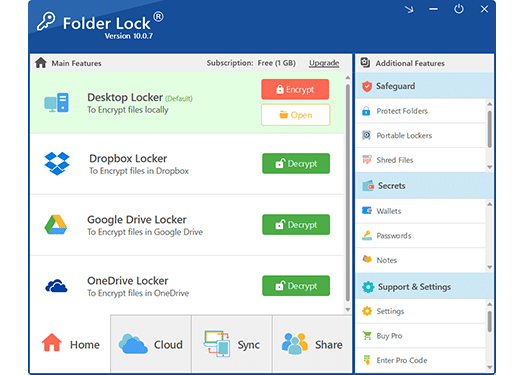
Create a Locker
Navigate to the Encrypt Files section and click "Create Locker". Choose the size of the virtual drive you need.
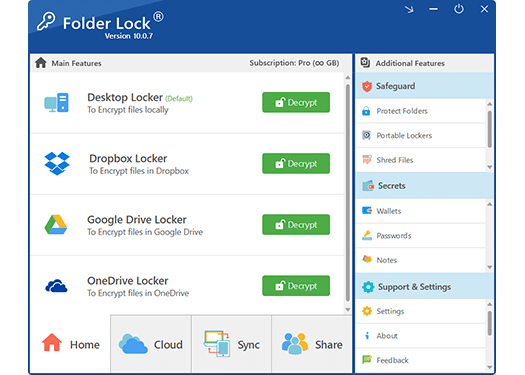
Move Files to the Vault
The locker opens like a regular Windows USB drive. Drag and drop your sensitive folders into this drive.
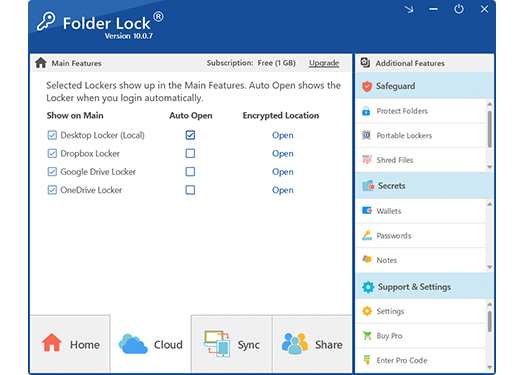
Close to Secure
Close the locker within the software interface. The virtual drive disappears from Windows, and your data is instantly encrypted.
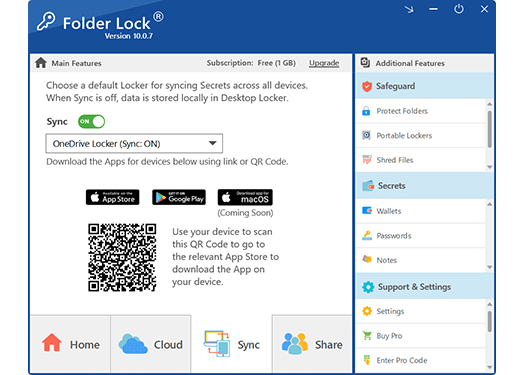
Enable Cloud Sync & Backup
For ultimate peace of mind, navigate to the backup module to automatically sync your encrypted lockers with your preferred cloud provider, ensuring your data is protected from hard drive failure.
Which method is right for you?
Use this decision guide to find the most appropriate security measure for your specific situation.
The Home User
Sharing a family PC
The Student
Sending assignments
The Freelancer
Client data compliance
Explore the Wider Security Ecosystem
If your privacy requirements extend beyond standard directory encryption, the developers behind our top pick offer a comprehensive suite of specialized protective applications.
Your Questions Answered
Can you password protect a folder without software? ▼
How to lock and hide a folder completely? ▼
How to password protect a folder on Mac? ▼
How do I protect social media apps or lock WhatsApp? ▼
Our Verdict
Securing your personal data should not be an afterthought. If you have followed this guide, you now understand that relying on basic Windows hidden folders leaves your data entirely vulnerable to basic searches.
For archival storage, using a free tool like 7-Zip is perfectly adequate. However, for everyday use—where you are actively editing documents, backing up to the cloud, or protecting a family computer—the workflow of extracting and re-compressing archives becomes unmanageable.
Because it provides instantaneous AES-256 encryption, direct cloud backup integration, and user-friendly virtual drives, we recommend Folder Lock 10 for most users. It solves the usability problem of encryption without compromising on security.
Buy Pro Version